Guide

Getting started with Orchid SSH

From download to your first server in minutes. Every step fits on one screen.

1

Download and install

Choose your platform on the download page: NSIS installer on Windows, DMG on macOS (Intel or Apple silicon) and .deb/AppImage on Linux. You don't need to install Node.js or any dependencies.

  • Windows: if SmartScreen warns you, click More info → Run anyway.
  • macOS: drag the app to Applications; auto-update requires a signed app, so download new versions manually.
  • The portable Windows executable does not receive automatic updates.
2

Create your first connection

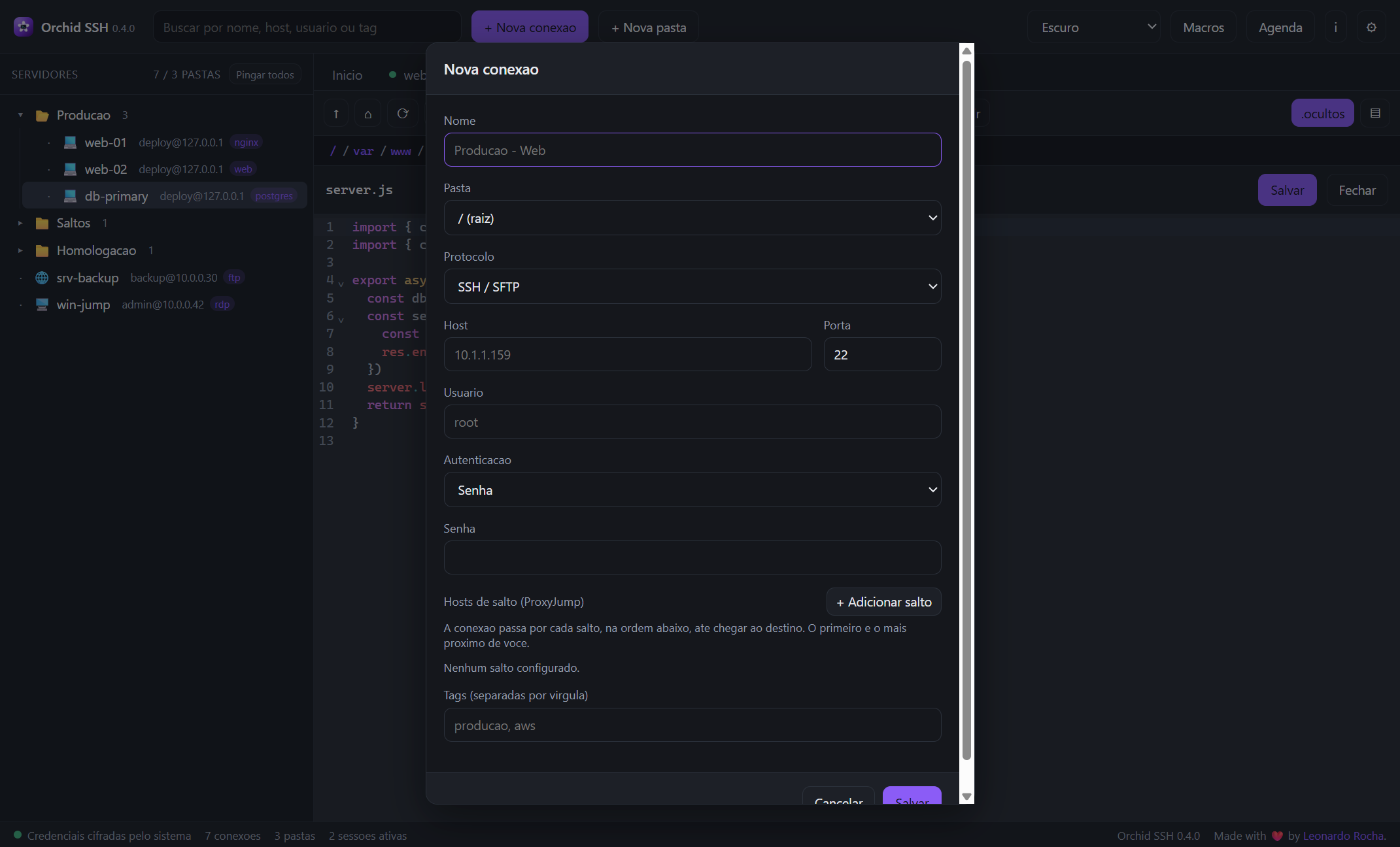
Click New connection (or Ctrl+N), enter name, protocol, host and port. Choose the authentication: password, private key (with passphrase) or SSH Agent.

  • Protocols: SSH, SFTP, FTP and FTPS.
  • Credentials are encrypted in the local vault — never in the workspace.
  • Save it and the connection appears in the side tree, ready to open.
Orchid SSH new connection form with protocol, authentication and jump hosts (ProxyJump)
3

Trust the host key (TOFU)

On first access the app shows the server key's fingerprint. Verify it with the administrator and accept — the decision is saved for next time.

  • If the key changes later, the app explicitly warns you (possible MITM).
  • The same applies to the FTPS certificate: nothing is accepted silently.
4

Use the terminal

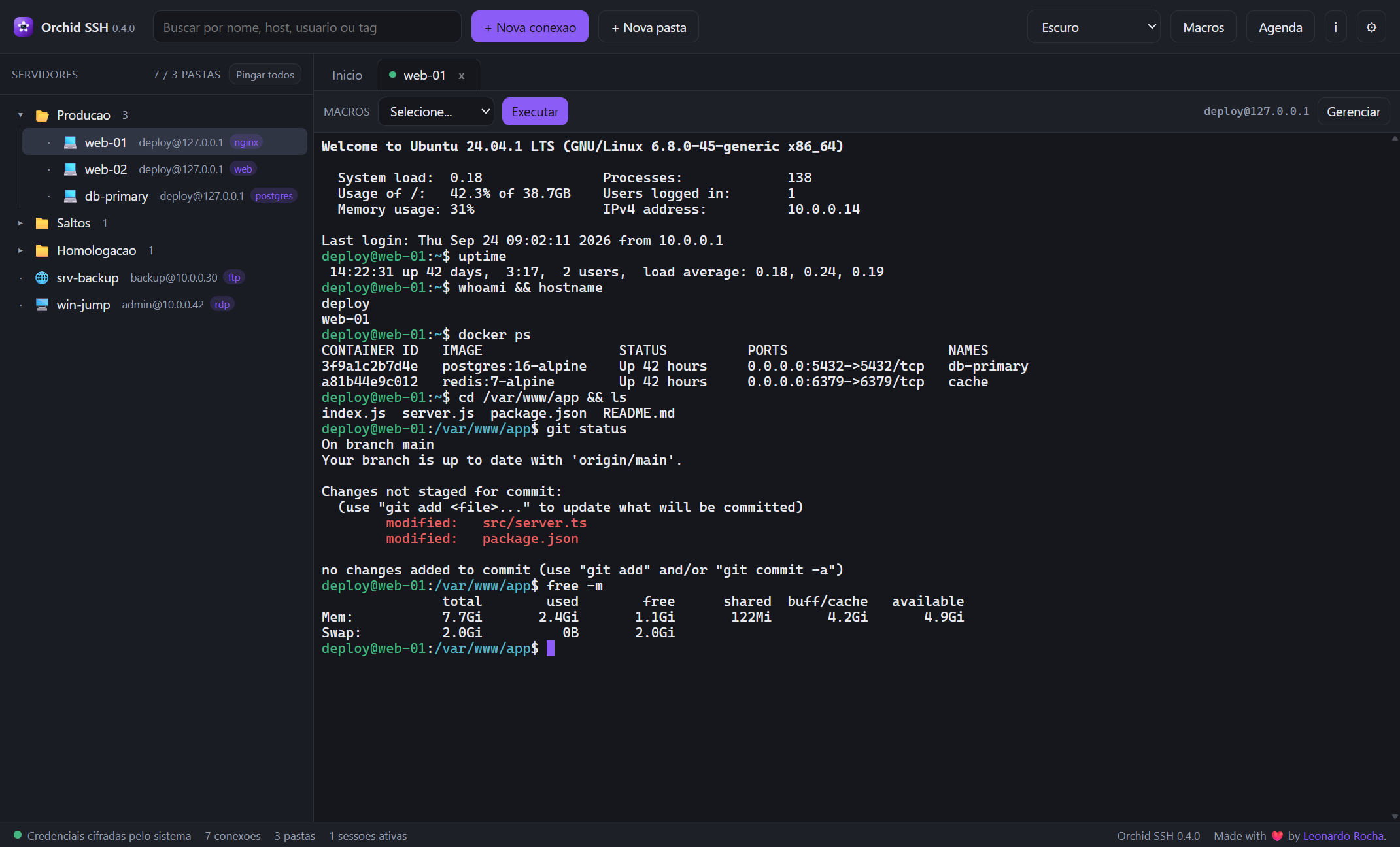
Open the connection to start an xterm.js terminal with PTY, automatic resize and scrollback. Each session becomes a tab, and background tabs keep receiving output.

  • Ctrl+R or Ctrl+Shift+R: reverse command search.
  • Ctrl+W: close the active tab.
  • Terminal theme and font are configurable in Settings (Ctrl+,).
Orchid SSH terminal with an active session
5

Transfer and edit files

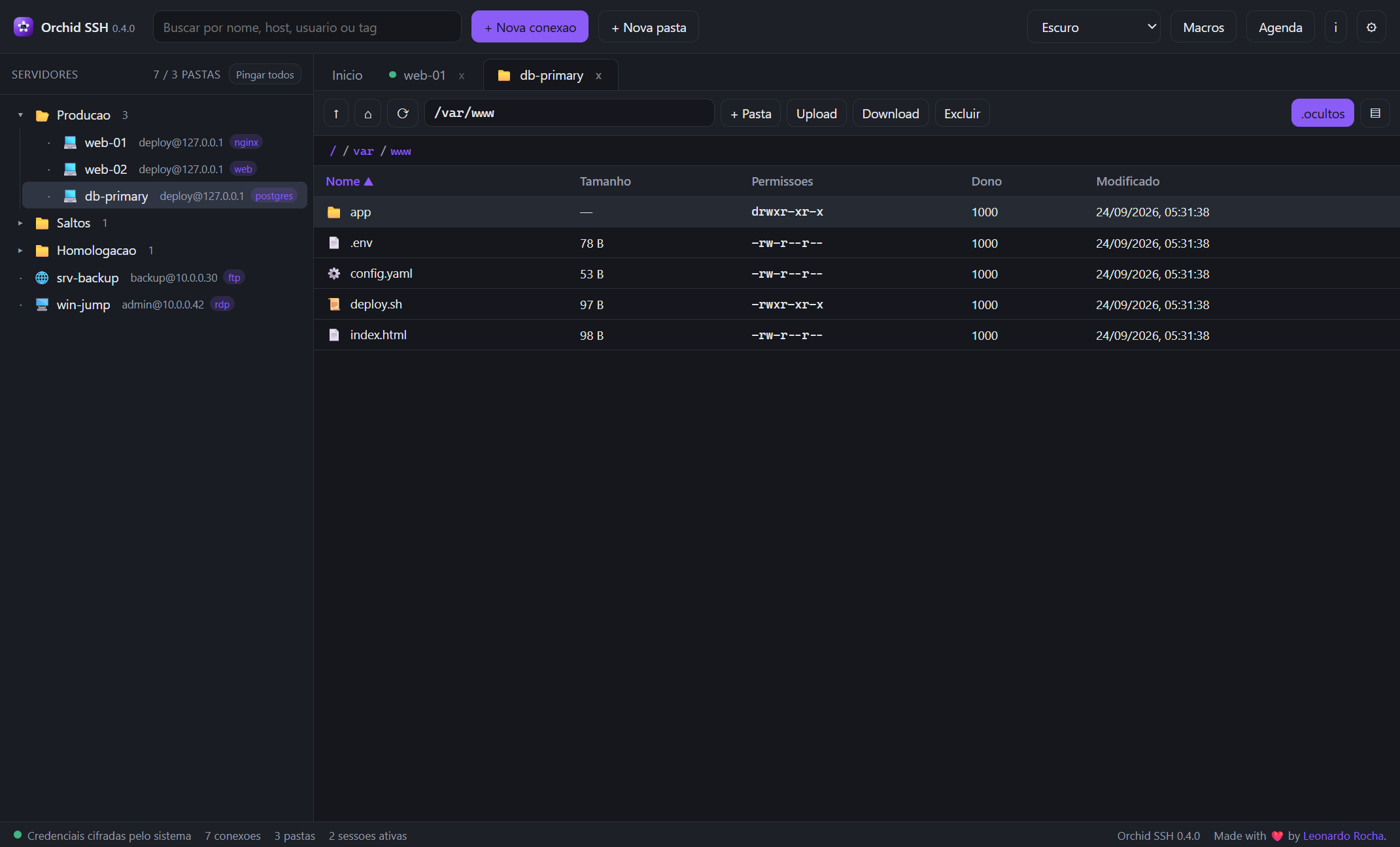
The files tab brings the remote manager (SFTP/FTP): navigate with breadcrumb, sort by column and switch between list and grid. Upload/download files and folders with a progress queue.

  • Drag from the operating system straight to the server.
  • Edit in the built-in CodeMirror and save with Ctrl+S (automatic upload).
  • Create folder, rename, recursive delete and show/hide hidden files.
Orchid SSH remote file manager listing /var/www
6

Organize your servers

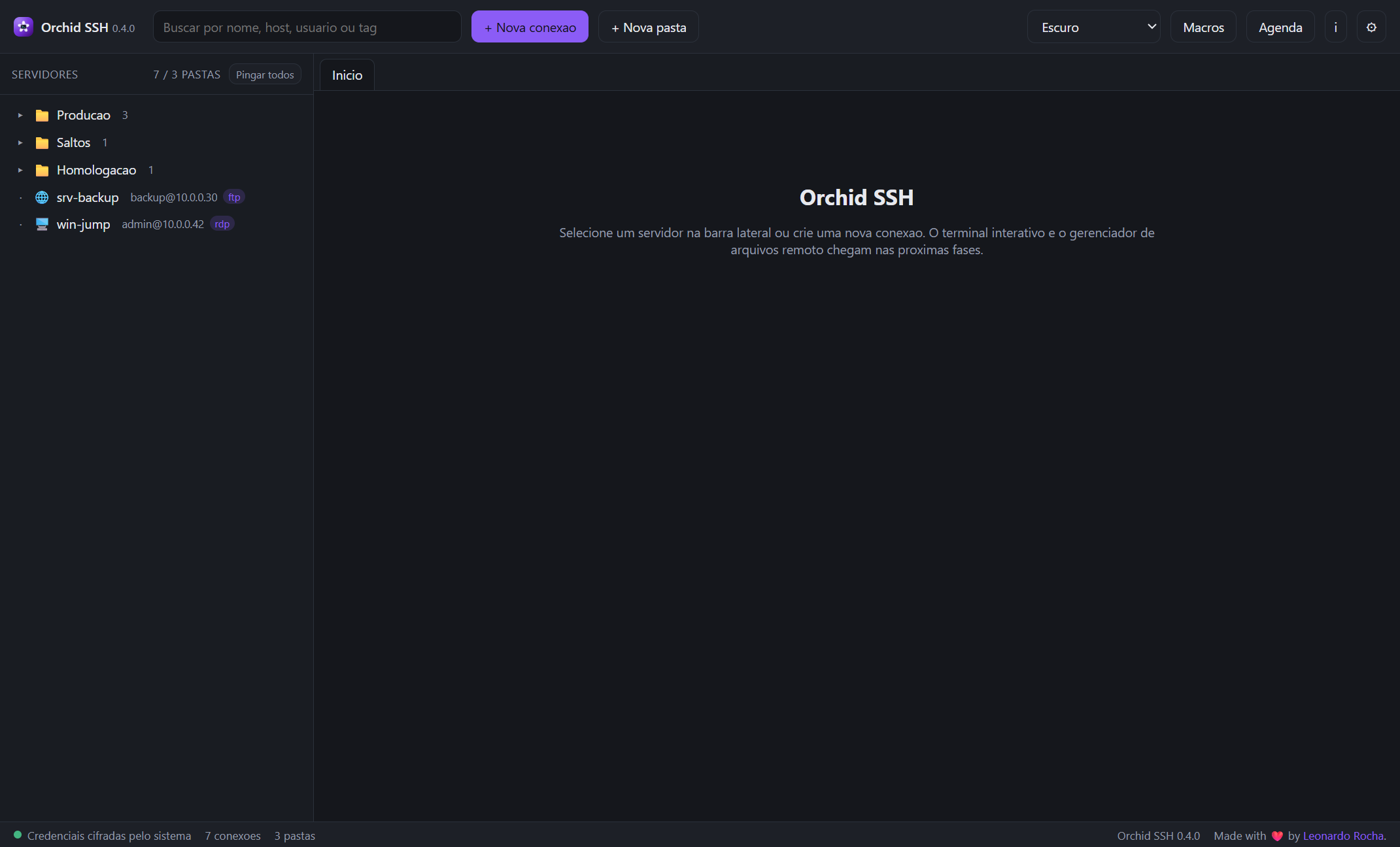
Group connections into folders and subfolders, rename, move, duplicate and delete. Use search by name, host, user or tag and drag & drop to reorganize the tree.

Orchid SSH panel with folders and server list
7

Advanced: jump hosts (ProxyJump)

When editing a connection, use + Add jump to build the route to the destination (you → gw1 → gw2 → server). The app authenticates on each bastion and opens a direct-tcpip tunnel to the next one.

  • The first in the list is closest to you; reorder with the arrows.
  • Works for SSH, SFTP and RDP (FTP/FTPS does not support tunneling).
  • Each jump has its own host key verification.
8

Advanced: macros and schedules

Create global macros with command sequences and run them in the active terminal or in silent mode (with output captured per command). Then schedule them like a crontab or as a one-time run.

  • Variables such as {host}, {user}, {port} and {date} are replaced with the connection data.
  • Macros run only on SSH connections; schedules run with the app open.
  • Check the last run output of a schedule via the View output button.
Orchid SSH macro manager

Ready to get started?

Download Orchid SSH and add your first server to the tree.

Download now